
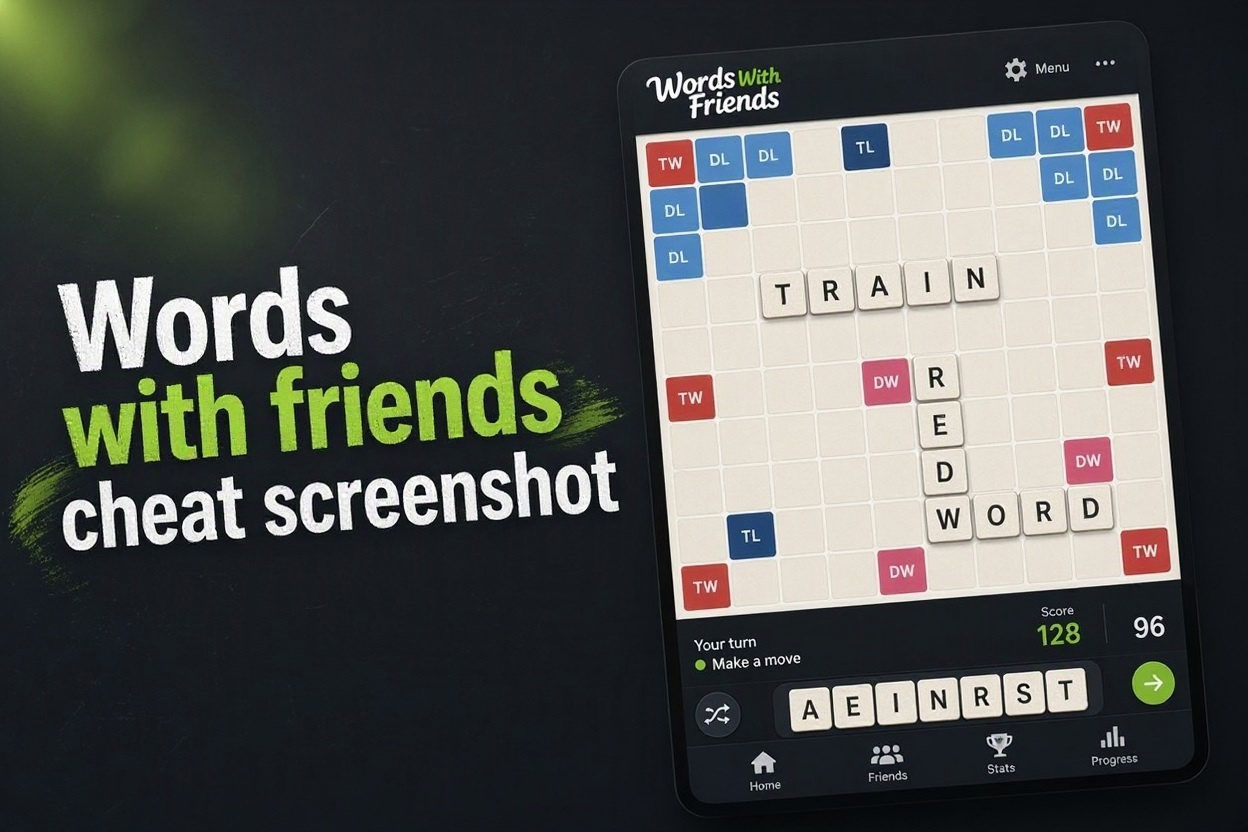
A Words with friends cheat screenshot is simply a picture of your game board that you share with or upload to a helper tool to find the best possible word. If you have ever stared at a rack of difficult letters like Q, Z, J, or X and felt stuck, you already understand why this method has become so popular among casual and competitive players.
Instead of typing each letter manually into a solver, you capture exactly what you see on the screen, including your rack, the board layout, and bonus squares. The cheat tool then reads the image and suggests high scoring words that fit your current position. It saves time and reduces typing errors.
This approach is helpful because Words With Friends boards get complicated fast. Double letter, triple word, and special tiles can completely change the value of a move. A visual snapshot preserves all that context, so the suggestions are more accurate than guessing from memory.
In this guide, you will learn what a Words with friends cheat screenshot means, how to take and use one safely, the benefits and risks, common mistakes to avoid, expert best practices, and answers to the most asked questions. Everything is explained in simple language for beginners and regular players.
Words With Friends looks simple at first, but winning consistently requires vocabulary, board vision, and strategy. You are not just making words, you are blocking opponents, saving good letters for bonus squares, and planning two or three moves ahead. That is a lot to manage in a short break.
This is where a screenshot based helper fits in naturally. Rather than switching between apps and retyping your tiles, you just take a quick capture of the board. It keeps your flow intact and lets you focus on choosing between good options instead of trying to discover them from scratch.
Many players use this method to learn faster, not just to win one game. When you see why QAT on a triple letter scores more than QUIZ in a corner, you start to internalize patterns. Over time, your own ability to spot hooks, parallel plays, and bingos improves even without help.
There are also practical reasons people prefer screenshots. Typing seven rack letters plus board positions is tedious and easy to mess up. A clear image captures blank tiles, exact positions, and scores at a glance. That accuracy leads to better recommendations and fewer wasted turns.
That said, fair play matters. Some friendly matches allow helpers and word solvers, while tournaments, clubs, and competitive ladders often ban them. Always check house rules and respect your opponent. Use screenshot tools to practice, study, and improve, and keep casual games fun and transparent for everyone.
What Is A Words With Friends Cheat Screenshot?
1. Clear Definition For Beginners
A Words with friends cheat screenshot is an image file of your live game that shows your letter rack and board state for analysis. A solver app or website scans the letters, recognizes tile positions, and calculates the highest scoring legal plays. It is faster than manual entry because you do not have to describe the board in words.
2. What The Screenshot Usually Includes
A useful screenshot typically includes your seven rack tiles at the bottom, the central board with placed words, your current score, and any visible bonus squares. The clearer these elements are, the better the tool can interpret them. Cropped, blurry, or dark images often produce missing letters or incorrect suggestions.
3. How Image Recognition Helps Word Play
Modern helpers use optical character recognition to read letters from tiles and map their coordinates on the grid. Once the board is digitized, the software checks a Words With Friends dictionary and simulates thousands of placements. It then ranks moves by points, considering double letter, triple word, and bingo bonuses.
4. Manual Entry Versus Screenshot Method
Manual entry requires you to type your rack and describe where words connect, which takes time and invites mistakes. The screenshot method captures everything instantly and preserves spatial relationships. This is especially valuable in crowded endgames where one misplaced letter can change the entire recommendation and cost you a win.
5. Common Tools That Accept Screenshots
Many word solver apps, board analyzer websites, and mobile helper tools now accept uploads from your camera roll. Some work directly from screen capture with auto crop, while others let you confirm letters before solving. Most support both Words With Friends and similar games, but always verify the dictionary matches the version you are playing.
6. Why Players Prefer Visual Input
Players prefer visual input because it is quick, accurate, and convenient during a live match. You can capture the board in two seconds, get suggestions, and return to the game without losing focus. It also helps when you have difficult racks with blanks, as the image shows exactly where flexible plays might fit.
7. Fair Play And Game Rules Context
A screenshot itself is not cheating in a technical sense, but how you use it determines fairness. Using solvers in solo practice or with friends who agree is generally fine. Using them secretly in ranked matches or cash tournaments can violate terms of service. When in doubt, ask your opponent and prioritize learning and sportsmanship over short term wins.
How To Use Words With Friends Solver Tools
1. Take a bright, sharp screenshot with your full rack and relevant board area visible, avoiding glare, low brightness, and pop up notifications that cover tiles.
2. Crop the image tightly around the board and rack to remove keyboards, chat boxes, and status bars, which helps the solver focus on letters and improves recognition accuracy.
3. Upload the cropped screenshot to your chosen Words With Friends helper and let it auto detect letters, then manually correct any misread tiles like I and L or O and Q.
4. Confirm the dictionary setting matches Words With Friends 2, check that blank tiles are marked correctly, and set whether you want highest score, longest word, or easiest play.
5. Review the top five to ten suggestions and compare points, board control, and defensive value instead of blindly playing the highest scoring word every single time.
6. Play the chosen word in the game, watch how it opens or blocks bonus lanes, and save difficult boards to study later so you learn patterns for future matches.
7. Respect fair play by using solvers for practice, coaching, and casual games where helpers are allowed, and avoid them in tournaments or matches where they are prohibited.
Key Benefits Of Screenshot Word Helpers
- Faster Decisions: You get strong move ideas in seconds without typing letters manually, which is perfect for busy schedules and timed games where every second counts.
- Higher Scores: The tool spots triple word setups, parallel plays, and hooks you might miss, often adding twenty to fifty extra points per game when used thoughtfully.
- Better Accuracy: Visual input reduces transcription errors from confusing letters, so suggestions actually fit your real board instead of an incorrectly typed version of it.
- Learning Support: By comparing your idea with top suggestions, you learn new two letter words, bingo stems, and placement tactics that improve your natural skill over time.
- Rack Management: Helpers show how to balance vowels and consonants, when to dump Q or Z, and when to save S or blank tiles for a bigger future scoring opportunity.
- Confidence Boost: New players feel less intimidated against experienced friends because they understand why a move works, which makes games more enjoyable and less stressful.
- Study And Review: Saved screenshots create a personal library of tough positions you can review later to recognize patterns, test alternatives, and track your steady improvement.
Best Practices For Words With Friends Screenshots
1. Capture In High Resolution Always
Always use your device native screenshot function instead of photographing the screen with another camera. Native captures preserve sharp tile edges and clear letters for accurate recognition. Avoid zoomed, stretched, or filtered images, and make sure night mode or blue light filters do not tint tiles yellow or reduce contrast significantly.
2. Include Rack And Board Together
Include both your rack and the active play area in a single frame whenever possible. Solvers need to know what you hold and where it can connect. If the board is too large, take one wide shot for context and one closer crop of the target zone, then verify the tool reads the correct rows and columns before generating moves.
3. Verify Letters Before You Play
Never trust auto detection blindly, especially with similar characters or partially covered tiles. Quickly confirm each rack letter and key board letters before solving. A single misread can turn a brilliant bingo into an illegal play. Spending ten seconds on verification prevents wasted turns and embarrassing invalid submissions in front of opponents.
4. Prioritize Board Control Over Points
The highest scoring suggestion is not always the smartest move. Sometimes a slightly lower score that blocks a triple word lane or keeps a balanced rack is better long term. Evaluate how each option opens the board for your opponent. Strong players use screenshot insights for strategy, not just raw points, to win consistently.
5. Learn Two And Three Letter Words
Use solver results to build your short word knowledge, which is the real secret of advanced play. Words like JO, QI, ZA, AX, and OXI create parallel plays and hooks that unlock big scores. Keep a notebook of new finds from your screenshots and quiz yourself weekly. This habit quickly raises your average without constant helper use.
6. Protect Privacy In Shared Images
Before uploading or sharing a Words with friends cheat screenshot, crop out personal notifications, usernames you do not want public, chat messages, and profile photos. Use trusted solver sites with clear privacy policies and avoid tools that demand excessive permissions. Delete uploads when finished if the service allows it for extra peace of mind.
7. Practice Without Help Regularly
Schedule games where you do not use any helper at all to test your real progress. Try to beat your own average score, spot bingos independently, and manage tricky racks under pressure. Helpers are excellent teachers, but true confidence comes from solving boards yourself. Balanced practice keeps the game fun, fair, and personally rewarding.
A Words with friends cheat screenshot is a practical shortcut for finding better moves, learning new words, and understanding board strategy more clearly. When you capture sharp images, verify letters, and choose moves thoughtfully, you can boost scores while actually improving your skills.
Remember to use these tools responsibly and consider your opponent and setting. Practice often, study the suggestions, and enjoy the process of becoming a smarter, more confident Words With Friends player over time.
Keep your screenshots clear, your play fair, and your focus on learning. With consistent practice and smart use of helpers, you will see steadier wins and much more enjoyable games.
FAQs About Words With Friends Cheat
What is a Words with friends cheat screenshot exactly?
It is a screen capture of your Words With Friends board and letter rack used for analysis. A helper tool reads the letters and board layout from the image and suggests legal high scoring plays. It saves manual typing and provides faster, more accurate recommendations based on your exact position.
How do I take a clear screenshot for a solver?
Use your phone built in screenshot buttons during your turn with full brightness. Make sure your entire rack and target board area are visible and sharp. Crop out keyboards and notifications, avoid glare, then upload the image to a solver and confirm detected letters before generating word suggestions.
Are screenshot cheat tools allowed in Words With Friends?
Rules depend on context and agreement with opponents. Solo practice and casual games where everyone allows helpers are usually fine. Ranked ladders, clubs, and cash tournaments often prohibit solvers. Check the game terms and house rules, and always play transparently to avoid account penalties or loss of trust.
Why is my screenshot solver giving wrong words?
Incorrect results usually come from blurry images, cropped racks, misread letters, or wrong dictionary settings. Ensure high resolution, correct blank tiles, and Words With Friends mode instead of Scrabble mode. Manually fix any misrecognized tiles like O and Q, then run the analysis again for better accuracy.
Can screenshots help me improve without cheating?
Yes, when used as a study aid they are very effective. Compare your planned move with top suggestions, learn why certain placements score higher, and save tough boards for review. Focus on two letter words, hooks, and rack balance. Over time you will need the helper less and play stronger naturally.
What should I avoid sharing in game screenshots?
Avoid sharing personal notifications, private chats, email previews, real names, and profile details that appear on screen. Crop tightly to just the board and rack. Use reputable tools with clear privacy policies, deny unnecessary permissions, and delete uploaded images afterward if the service provides that option.